![MainBrand_RGB_Icon_Red.jpg]](https://knowledge.balancedcomp.com/hs-fs/hubfs/MainBrand_RGB_Icon_Red.jpg?width=40&height=40&name=MainBrand_RGB_Icon_Red.jpg)
-
Company Administrators can always access these settings.
- Depending on your company's settings, Supervisors may also be able to access these settings.
- Final approvals cannot be edited until the plan supervisor clicks the "I'm ready to start rating!" link in the subnav, which should happen towards the end of the review period.
Plans can have up to two approval processes:
- Initial Approval to become an "Active" plan in the beginning of the year.
- Final Approval to become "Ready For Final Review."
These approval processes involve setting up a queue of approvers you would like to approve the plan from within an employee's plan. This is typically completed at the beginning of the year, but can be changed as needed.
It's worth noting that when you create a performance plan, the queues are automatically built in accordance with company settings. And from there, they can be edited if necessary.
How to Edit a Plan’s Approval Queue
-
In the subnav, click either:
-
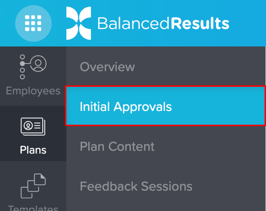
Initial Approvals
-
If your system does not require initial approvals, then the subnav will say "Activate Plan" instead of "Initial Approvals", and your approval queue will not be editable.
-
-
-
-
Final Approvals
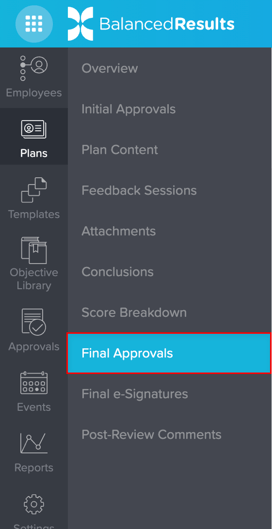
- Note: If your system does not require final approvals, then the subnav will say "Finalize Plan" instead of "Final Approvals", and your approval queue will not be editable.
-
- At the top of the page, click the primary action at the top of the page titled either:
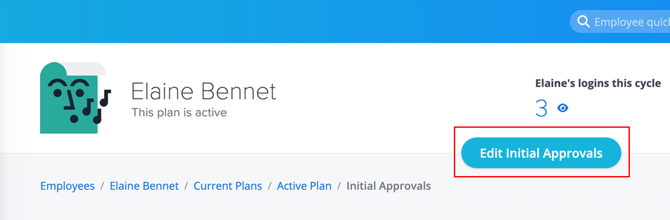
- Edit Initial Approvals
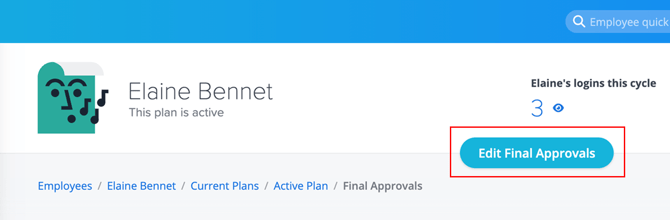
- Edit Final Approvals
- Edit Initial Approvals
- From here, you can add, edit, and delete approvers.
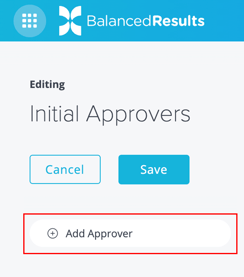
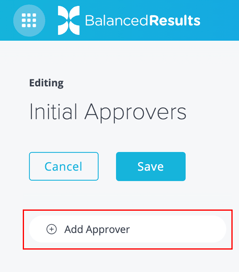
- You can add an approver by clicking the New Approver button to the left of either page:
- From the dropdown in each approval, select the name of the person you'd like to make an approver.
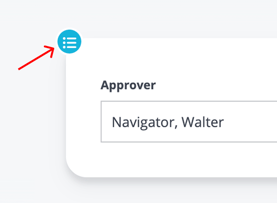
- You can reorder them by dragging and dropping with the blue circle & icon to the top left of each approval.
- You can delete approvals by clicking the trash can icon to the right of each approval.
- You can add an approver by clicking the New Approver button to the left of either page: